Free · open source (MIT) · macOS · for Herdr

Welcome to my herd.

Control your Herdr AI agents in a thumb tap.

Your AI agents work in parallel inside Herdr (external link), but you don’t. MouseHerdr puts every agent one thumb-tap away.

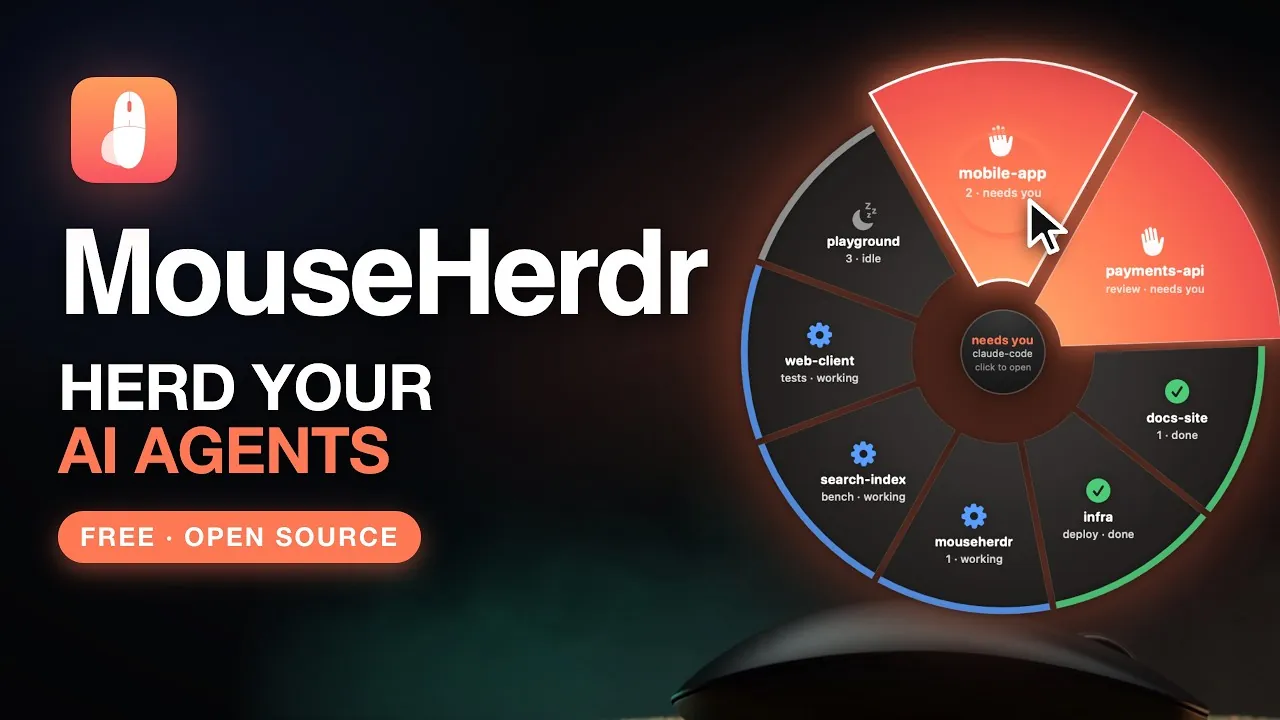
MouseHerdr is a free, open-source macOS app I “built” for the Logitech MX Master 4. Tap the haptic thumb pad and a wheel of your coding agents appears around your pointer. The ones waiting on you glow orange and sit closest. Read the question, answer it with one click, and get back to work without hunting through ten terminal windows.

  • macOS 13 or later
  • Apple silicon and Intel
  • MX Master 4 over Bluetooth
  • Herdr for the agent features
  • Ad-hoc signed, not notarized
Animated demo from the README: the agent wheel opens around the pointer, two orange wedges need attention, and a question bubble offers numbered answers that are clicked to reply.
The agent wheel, animated (the GIF from the repository README, sample data).

Watch the trailer

One shepherd, a herd of agents, and a theme song. Nothing loads from YouTube until you press play; the player then uses youtube-nocookie.com.

What it does

The slow part of running ten agents isn’t the agents. It’s you, tabbing through terminals to find the one that has been waiting an hour. MouseHerdr brings the waiting ones to your pointer.

  • Agent wheel

    Tap your thumb to see every agent around your pointer.

  • Answer in place

    The agent’s question pops up in the wheel; click an answer, or type your own.

  • Approve risky commands

    See the exact command and say yes or no from your thumb.

  • Jump to any agent

    Click its slice to open it in Herdr.

  • Feel it

    A knock in your thumb when an agent needs you, a pulse when one finishes.

And the mouse still does mouse things

  • Remap every button

    Shortcuts, apps, gestures and the thumb wheel.

  • Drag and snap windows

    Hold the thumb pad, move, let go.

How it works with Herdr

MouseHerdr doesn’t run your agents; Herdr does. MouseHerdr is a remote control on top: it asks Herdr’s own command-line tools what your agents are doing, and types your answers back for you.

A friendly note: I’m not affiliated with Herdr (or Logitech). I’m just a fan of Herdr who built MouseHerdr for my own workflow, using the tools Herdr gives everyone. — Roy

The Herdr pieces it uses

  • Herdr

    “the runtime your coding agents live on” · herdr.dev (external link) · GitHub (external link)

    Herdr keeps your agents’ terminals running and marks every pane working, blocked or idle, so you never hunt for the stuck one. It runs the agents you already use, such as Claude Code, Codex and Cursor.

  • herdr-core (hc)

    “terminals for coding agents” · GitHub (external link)

    The engine underneath: hc runs programs and coding agents in terminals that stay alive after you leave. It draws nothing; you use it from your shell, an agent, or your own app. MouseHerdr is one of those apps.

  • The Herdr desktop app

    “a desktop app for terminals and coding agents” · GitHub (external link)

    The window where your agents live, with a sidebar that shows which agents need you. Its shell installer also installs herdr-core, so installing the app gets you both.

What happens when you tap

  1. Look. MouseHerdr runs hc ls --json to list the live terminals and keeps the ones that are coding agents, each with its status: working, blocked, done, idle or error.
  2. Read. For each agent it runs hc get … --json for the title and status message. When an agent is blocked and needs you, it reads that agent’s screen with hc read to find the numbered choices of its question.
  3. Answer. Picking a choice presses that number in the agent’s terminal with hc keys. A typed answer first picks the question’s “Type something” choice, then sends your words with hc send.
  4. Jump. Clicking a wedge asks the desktop app to focus that agent’s terminal (herdr-app do agent.focus), then brings the Herdr window to the front.

It is all local commands on your Mac: MouseHerdr makes no network requests of its own. Each command gets a few seconds to answer, so a missing or stopped Herdr simply shows up as a status on the Agents page, and the mouse features keep working without it.

In detail

The same features, spelled out from the README. The agent features need Herdr; the rest work on their own.

Herdr agent wheel

  • Tap the haptic panel to see your agents in a wheel around the pointer. Agents waiting on you are orange, wider, and closest.
  • Aim at one and click its wedge to jump to it in the Herdr app.
  • If it asked a question, a speech bubble shows it. Each offered choice is a button you can click to answer without leaving what you’re doing; hovering a choice shows its explanation, and “Type your own answer…” opens a small text box.
  • A knock in the thumb pad when an agent starts waiting on you, and a pulse when one finishes.

Button remapping

  • Assign any of the wheel click, top button, gesture button, forward, back and haptic panel to an action: back/forward, tabs, Mission Control, desktops, copy/paste, media keys, screenshots, lock screen, a keyboard shortcut you record, or opening an app.
  • The gesture button has five actions: click, and hold-and-move up, down, left or right.
  • The thumb wheel can scroll sideways (default) or control volume, tabs, zoom, desktops, or undo/redo.

Window dragging and snapping

  • Hold the haptic panel and move the mouse to drag the window under the pointer, whether or not it is the active one. Let go to drop it.
  • While dragging, push into a screen edge to snap: left or right for half the screen, the top for full, a corner for a quarter.

Haptic feedback

  • A bump when a dragged window reaches a snap edge or a gesture fires.
  • Optional: a tick when the pointer crosses into or out of a window, and a fainter one when it lands on something clickable.

One window, three pages

  • Agents comes first: it lists your agents with what each is asking, lets you answer or open one, and has a button to show the wheel.
  • Buttons is the mouse picture for assigning actions, including “Show the agent wheel” for any button.
  • Feel holds the haptic and window-snapping switches.
The MouseHerdr window on its Agents page: two agents marked “Needs you” with their questions and numbered answer buttons, and the agent wheel settings on the right.
The Agents page (screenshot from the repository, sample data).
The agent wheel around the pointer: two orange “needs you” wedges at the top, others marked working, idle or done, and a speech bubble above with numbered answer choices.
The agent wheel with a question bubble and its answer choices (sample data).
The Buttons page: a drawing of the MX Master 4 with labels for the thumb wheel, gesture, forward, back, wheel click, top button and the highlighted haptic panel set to “Drag the window”, next to a list of actions.
The Buttons page: pick a control on the mouse picture, then choose its action.

Who it is for

MouseHerdr is a focused tool: your Herdr agents, one mouse, one platform.

A good fit if you

  • run several coding agents in Herdr (external link) and want to see and answer them without hunting through terminals;
  • use a Logitech MX Master 4 with a Mac running macOS 13 or later, connected over Bluetooth;
  • want to remap its buttons without Logi Options+;
  • move and snap windows a lot and would rather do it from the haptic panel.

Look elsewhere if you

  • connect through the Logi Bolt USB receiver: it is not supported;
  • need full support for another Logitech mouse: other Bluetooth mice that expose the same HID++ interface fall back to a “Generic mouse” with only the wheel click, back and forward buttons, and these devices are untested;
  • need an Apple-notarized app: release downloads are ad-hoc signed, and source builds are not notarized either;
  • want to keep running Logi Options+ at the same time: the two will fight over the buttons.

Requirements

Requires macOS 13 or later and an MX Master 4 connected over Bluetooth. Button remapping and window dragging work on their own; the agent features need Herdr (external link).

Mac
macOS 13 or later (developed and tested on macOS 26, Apple silicon). Release downloads run on Apple silicon and Intel; mouse hardware testing has been on Apple silicon.
Mouse
A Logitech MX Master 4 connected over Bluetooth. The Logi Bolt USB receiver is not supported.
Permissions
Accessibility and Input Monitoring in System Settings → Privacy & Security.
To build from source
Xcode command line tools (Swift 5.9 or later). An Apple Developer account is not required.
For the agent features
Herdr (external link). Button remapping, window dragging and the other haptics work without it.

There are no third-party Swift packages, required accounts, or API keys.

Limitations and good to know

  • Only the MX Master 4 has full support. Other Logitech Bluetooth mice with the same HID++ interface get a “Generic mouse” profile (wheel click, back, forward) and are untested.
  • Bluetooth only. The Logi Bolt USB receiver will not work.
  • Releases are ad-hoc signed and not notarized by Apple: expect Open Anyway on first launch, and updates may require granting the permissions again.
  • Running Logi Options+ at the same time will fight over the buttons. Use one or the other.
  • Remaps of the wheel click, back and forward apply to any mouse connected to the Mac.
  • Quitting from the menu bar hands every button back to the mouse.
  • “Feel what’s clickable” asks each app what is under the pointer, which can slow Chromium-based apps slightly. Turn it off if you notice.
  • This is an independent project, not affiliated with, endorsed by, or supported by Logitech, Apple, or Herdr. It sends commands to your mouse and presses keys on your behalf; use it at your own risk.

Install

Download the latest Mac app, or build it from source. Each release contains one app for both Apple silicon and Intel.

Download a release

  1. Download MouseHerdr.zip (external link) and unzip it.
  2. Quit any running MouseHerdr, then drag MouseHerdr.app to Applications. Replace the older copy if you are updating; your assignments remain saved.
  3. Open MouseHerdr from Applications. If macOS blocks it, go to System Settings → Privacy & Security, find MouseHerdr under Security, and choose Open Anyway.
  4. Grant Accessibility and Input Monitoring (see below), then quit and reopen MouseHerdr.

These downloads are ad-hoc signed and not notarized by Apple. The Open Anyway step allows this particular app. Updates may require granting the permissions again; remove and re-add the Applications copy if necessary.

Verify the download

Save MouseHerdr.zip.sha256 (external link) from the same release beside the ZIP, then run this in that directory:

Check the SHA-256

shasum -a 256 -c MouseHerdr.zip.sha256

Build from source

Install Apple’s command line tools if you have not already, check that swift --version reports Swift 5.9 or newer, then:

Build and install

xcode-select --install
git clone https://github.com/royosherove/mouse-herdr.git
cd mouse-herdr
./build.sh install

This builds the app, copies it to /Applications/MouseHerdr.app and starts it. The first start opens the window; after that it starts quietly in the menu bar and at login. You can turn off Start MouseHerdr when I log in in the window.

Run the build as your normal user, without sudo; if Applications needs administrator approval, copy dist/MouseHerdr.app there with Finder and open it. Source builds use a local signing identity, so macOS keeps your permissions across rebuilds.

Update a source build

Keep the same checkout and its signing/ directory, then run:

Update

git pull --ff-only
./build.sh install

Grant permissions

In the app’s setup panel, grant these two permissions under System Settings → Privacy & Security:

PermissionWhy
AccessibilityTo press shortcuts for you and move windows. Required.
Input MonitoringTo talk to the mouse directly. Needed for the top button, real hold and release on the haptic panel, haptics, and battery level.

If MouseHerdr does not appear in the Input Monitoring list, click + there and choose it from Applications. Quit and reopen MouseHerdr after granting Input Monitoring, or use its relaunch button.

Or let a coding agent build it

The README includes a prompt you can paste into an agent that can run commands on your Mac. It checks the toolchain, builds as your normal user with local signing, runs the tests, installs, and guides you through the permissions. Herdr stays optional. Copy it from Building from source for agents (external link).

Uninstall

Turn off Start MouseHerdr when I log in, then quit from the menu bar. Delete /Applications/MouseHerdr.app, ~/Library/Application Support/MouseHerdr and ~/Library/Logs/MouseHerdr.log, and remove MouseHerdr from Login Items and the two privacy lists. To also clear its UI preferences:

Clear UI preferences

defaults delete dev.mouseherdr.app

Source builds also have a signing identity to remove; see signing cleanup (external link) in the README.

Set up the agent wheel (optional)

Install the Herdr desktop app (external link) separately; its shell installer also installs herdr-core. Start the app and open a coding-agent session there. MouseHerdr uses the hc command from herdr-core to list agents and send answers.

The app looks for these commands in ~/.local/bin, /opt/homebrew/bin, /usr/local/bin and ~/.cargo/bin. Check the connection without starting the mouse remapper:

Check the Herdr connection

/Applications/MouseHerdr.app/Contents/MacOS/MouseHerdr --herdr-status

The Agents page shows whether Herdr is missing, stopped, or running without agents. MouseHerdr rechecks while it runs, so installing or starting Herdr does not need a MouseHerdr restart.

Under the hood

A native Swift app (SwiftUI window, menu bar item) with no third-party packages. The mouse side and the agent side are separate paths:

MX Master 4 Bluetooth HIDPP.swift HID++ 2.0: diverted buttons, battery, haptics ActionRunner.swift event tap: extra buttons, thumb wheel AppState.swift profile, actions, window drag and snap macOS key and media events, windows Agents.swift hc (herdr-core) ⇄ Herdr
Data flow: the mouse talks HID++ 2.0 over Bluetooth to HIDPP.swift; ordinary buttons and the thumb wheel reach ActionRunner.swift through an event tap; actions go out as key and media events; Agents.swift talks to Herdr through the hc command.

The source, file by file

HIDPP.swift
speaks Logitech’s HID++ 2.0 protocol over the mouse’s Bluetooth vendor channel: it captures (“diverts”) the buttons macOS never sees, reads the battery, and plays the built-in haptic waveforms.
ActionRunner.swift
watches the ordinary extra buttons and the thumb wheel with an event tap, and performs actions by posting key and media events.
MouseProfile.swift
describes what a mouse is: its controls, where their presses come from, its defaults and its picture. Profiles/ has one file per mouse.
AppState.swift
picks the profile for the connected mouse, ties its controls to actions and holds the window dragging and snapping.
Feel.swift
has the hover and window-edge detection and the snap preview.
Agents.swift
reads agent state from hc (herdr-core), draws the wheel and speech bubble, and sends answers back with hc keys and hc send.
MouseView.swift and ContentView.swift
are the SwiftUI window, drawn from the profile.

The default button map, in code

Everything specific to one mouse lives in a MouseProfile. These are the MX Master 4’s defaults, quoted from the profile source (external link): the haptic panel drags windows, the gesture button and its hold-and-move directions drive Mission Control, App Exposé and desktops.

Sources/MouseHerdr/Profiles/MXMaster4.swift, lines 56–68

defaults: [
    .middle: .standard,
    .modeShift: .standard,
    .thumbPanel: Action(kind: "dragWindow"),
    .thumbWheel: .standard,
    .back: Action(kind: "back"),
    .forward: Action(kind: "forward"),
    .gesture: Action(kind: "missionControl"),
    .gestureUp: Action(kind: "missionControl"),
    .gestureDown: Action(kind: "appExpose"),
    .gestureLeft: Action(kind: "spaceLeft"),
    .gestureRight: Action(kind: "spaceRight"),
],

Adding a mouse

Copy Profiles/MXMaster4.swift (or the smaller Generic.swift), set its productIDs and/or nameContains, list its controls (each with a slot, a source such as .button(n) or .hidpp(cid:), and where it sits on the picture), then add it to MouseProfile.all. MouseHerdr logs the product id and every control id the mouse reports. Check the drawing without the mouse:

Render a profile without the mouse

./build.sh
dist/MouseHerdr.app/Contents/MacOS/MouseHerdr --snapshot /tmp/mouse.png --profile <id>

Full steps: Adding a mouse (external link).

What the build script does

  • Builds with swift build and assembles dist/MouseHerdr.app.
  • Signs the app with a self-signed certificate it creates in signing/ (not committed), so macOS keeps your permissions across rebuilds. To make that certificate findable it adds that keychain file to your keychain search list. Keep the signing files private.
  • Uses the app identifier dev.mouseherdr.app. To customize the build, copy local.env.example to local.env and edit it. Keep your chosen identifier stable after granting permissions.
  • Verifies the app’s signature before installation and stops if any build step fails.

The whole of the optional build settings file:

local.env.example

# Optional build settings. Copy to local.env before editing.
# local.env is sourced as shell code: only use a file you trust.
# Keep the identifier stable after granting macOS permissions.
BUNDLE_ID=dev.mouseherdr.app

# local creates a persistent signing identity in the ignored signing/ directory.
# adhoc is for disposable test builds and CI; permissions may reset on rebuild.
SIGNING=local

Releases and tests

After CI passes for a push to main, the Release workflow publishes only when the app or its build inputs changed (Sources/, Resources/, Package.swift, Package.resolved, build.sh or VERSION). Documentation, tests and CI-only changes do not create releases.

It builds one universal app, verifies both architectures and the extracted ZIP’s signature, runs the setup checks against the extracted app, then publishes MouseHerdr.zip and its SHA-256 checksum. The version is the contents of VERSION followed by the total commit count on main.

GitHub Actions runs the tests on Intel and Apple silicon macOS runners. These checks do not validate Bluetooth hardware, privacy permission prompts or behavior on every macOS release.

Tests (CONTRIBUTING.md)

swift test
python3 scripts/test_release.py
SIGNING=adhoc ./build.sh
MOUSEHERDR_TEST_BINARY=dist/MouseHerdr.app/Contents/MacOS/MouseHerdr python3 scripts/test_setup.py

The HID++ feature and function numbers were learned from the documentation and source of Solaar (external link), the Linux device manager for Logitech devices. No Solaar code is included.

Privacy

MouseHerdr has no telemetry or built-in network requests. Remapping, window inspection and settings stay on your Mac.

With agent features enabled, it reads agent status, titles, questions and terminal text through the locally installed Herdr tools, and sends answers through those tools when you choose to reply. Herdr and your coding agents have their own network behavior.

Logs can contain application names, agent workspace/tab names, button events and local paths. Typed answers are logged by character count, not their contents.

Settings are in ~/Library/Application Support/MouseHerdr/config.json. The log is at ~/Library/Logs/MouseHerdr.log.

FAQ

Is it free?

Yes. MouseHerdr is free and open source under the MIT License, and downloads come straight from GitHub releases.

Do I need Logi Options+?

No. MouseHerdr talks to the mouse directly. Running Logi Options+ at the same time will fight over the buttons, so use one or the other.

Which mice does it support?

The Logitech MX Master 4 over Bluetooth. Other Logitech Bluetooth mice that expose the same HID++ interface fall back to a “Generic mouse” with only the wheel click, back and forward buttons; these devices are untested.

Does it work with the Logi Bolt receiver?

No. The Logi Bolt USB receiver is not supported. Connect the mouse over Bluetooth.

Does it run on Intel Macs?

Release downloads run on Apple silicon and Intel. It is developed and tested on macOS 26, Apple silicon, and mouse hardware testing has been on Apple silicon.

Why does macOS block the app the first time?

Release downloads are ad-hoc signed and not notarized by Apple. Go to System Settings → Privacy & Security, find MouseHerdr under Security, and choose Open Anyway.

Do I need Herdr?

Only for the optional coding-agent features. To use MouseHerdr without Herdr, turn off the thumb-pad tap and agent haptics on the Agents page; the mouse controls, window dragging and other haptics work separately.

What happens when I close the window or quit?

Closing the window leaves remapping running; click the mouse icon in the menu bar, then Open MouseHerdr… to get it back. Quitting from the menu bar hands every button back to the mouse.

The buttons do nothing. What should I check?

Grant Accessibility to the copy in Applications, and quit other mouse remappers, including Logi Options+. If the top button, haptics or battery are unavailable, connect over Bluetooth, grant Input Monitoring, then relaunch MouseHerdr.

Is it made by Logitech or Herdr?

No. It is an independent project, not affiliated with, endorsed by, or supported by Logitech, Apple, or Herdr.

How do I report a bug or contribute?

Use GitHub issues (external link) for bugs and suggestions, and pull requests for changes; see CONTRIBUTING.md (external link). For a vulnerability, follow SECURITY.md (external link). For a bug report, include your macOS version, Mac architecture, mouse model, connection type, swift --version, and the relevant error.

Share the herd

Know someone with ten agents and one pair of eyes? Here’s the short version.